
Table of Contents
Table of Contents
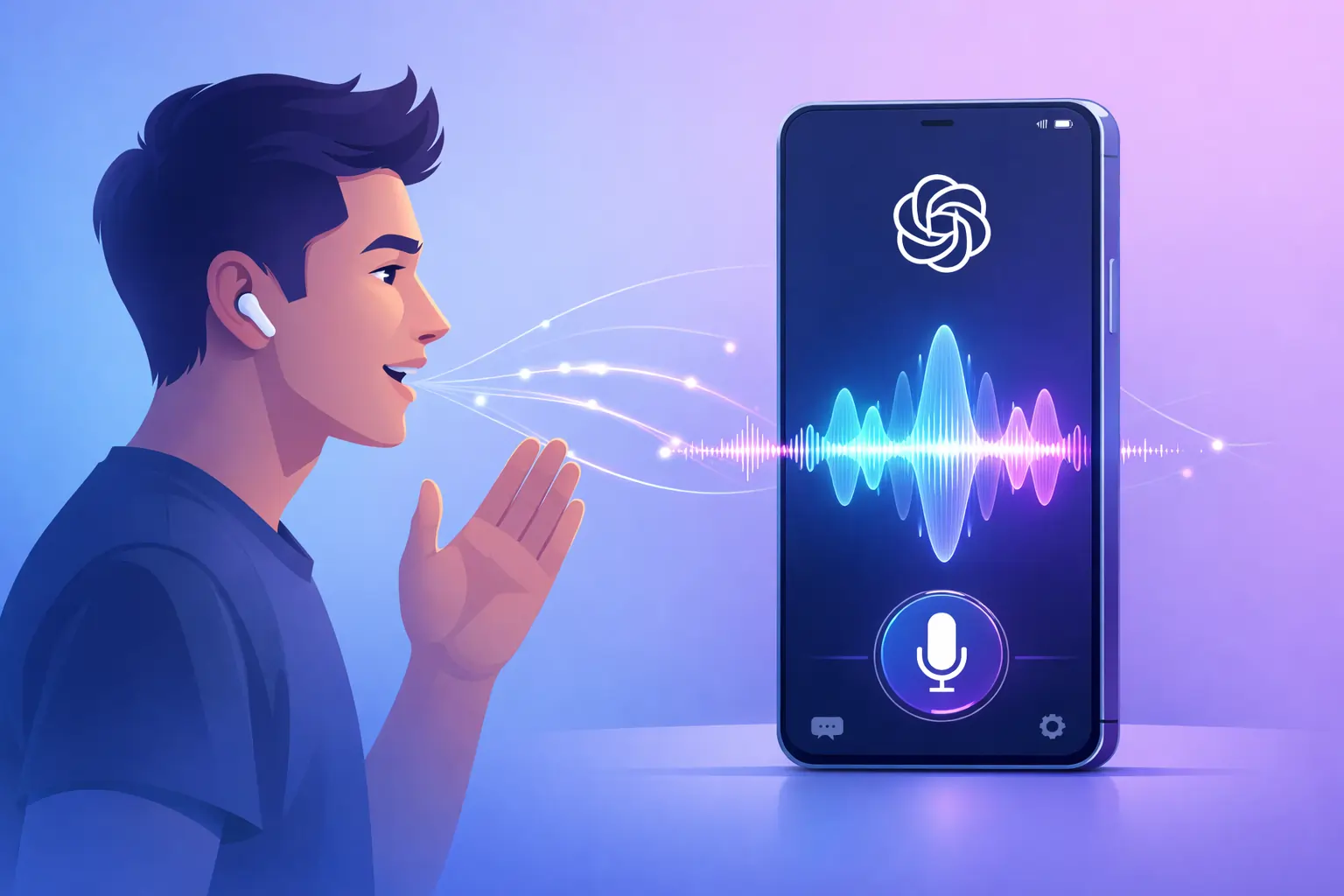
In 2026, the way people interact with AI is changing fast. Earlier, most users typed questions and waited for replies. Now, more people prefer speaking because it is faster and more natural. This is why many users are searching for how to use ChatGPT voice mode in their daily life. Voice interaction saves time and makes conversations feel real instead of robotic.
When you understand how to use ChatGPT voice mode, you can turn ChatGPT into a real assistant. You can ask questions, interrupt, and continue the conversation without typing. This is useful for students, professionals, and even beginners who want quick answers without effort. So, let’s start with the basics and understand how this feature works.
Key Takeaways
- Free Access: If you want to know how to use ChatGPT voice mode for free, the standard voice feature is available for everyone without limits.
- Advanced Mode: If you explore how to use ChatGPT advanced voice mode, you will get more natural conversations and better responses.
- Multi-Device: You can learn how to use ChatGPT voice mode on iPhone, Android, and PC easily.
- Hands-Free: Voice mode allows you to talk while doing other tasks like cooking or walking.
What is ChatGPT Voice Mode?
Before learning how to access ChatGPT voice mode, you need to understand what it actually does. Voice mode allows you to speak directly with ChatGPT instead of typing messages. Earlier versions were slow and robotic, but now the system is much more advanced.
With new updates, ChatGPT can understand tone, pauses, and natural speech patterns. This is called real-time AI voice interaction. It means you can speak normally, and ChatGPT will respond almost instantly. This makes it feel like you are talking to a human instead of a machine.
This is why many users are now focusing on how to use ChatGPT voice mode for study, work, and daily life. It is faster than typing and helps you multitask easily.

How to Access ChatGPT Voice Mode
If you are wondering how to access ChatGPT voice mode, follow these steps carefully. Many beginners skip small steps and get confused, but this process is very simple if you follow it properly.
Step 1: Download the official app
First, go to the App Store or Google Play Store and install the official ChatGPT app. This is important because voice features may not work properly in unofficial apps.
Step 2: Log in to your account
Open the app and log in using your email or Google account. Without login, you cannot access voice features.
Step 3: Find the voice icon
Look at the bottom right corner of the screen. You will see a waveform or headphone icon. This is the voice mode button.
Step 4: Enable microphone permission
Tap the icon and allow microphone access. This step is required so ChatGPT can hear your voice clearly.
Step 5: Start speaking
Now you can start talking. Speak naturally and ChatGPT will respond instantly.
If you follow these steps, you will easily understand how to access ChatGPT voice mode without any issue. If the feature is missing, update the app or restart your device.
How to Use ChatGPT Voice Mode on iPhone
Many users specifically search for how to use ChatGPT voice mode on iPhone because the experience is smooth and fast. iPhone users can access voice mode easily with a few simple steps.
Step 1: Install the ChatGPT app
Download the official app from the App Store and open it. Log in to your account before continuing.
Step 2: Open voice mode
Tap the voice icon at the bottom right corner. This will activate voice mode instantly.
Step 3: Select your voice
You may see different voice options like Breeze or Ember. Choose the one that feels comfortable.
Step 4: Start conversation
Speak clearly and ask your question. ChatGPT will reply in real time.
Step 5: Use quick access features
On newer iPhones, you can use the action button to open voice mode quickly. This saves time and improves usability.
After practicing these steps, you will feel comfortable using voice mode on your iPhone for daily tasks.
How to Use ChatGPT Voice Mode for Free
If you want to know how to use ChatGPT voice mode for free, the answer is simple. ChatGPT provides a standard voice feature that is completely free and unlimited.
There are two types of voice modes: Standard and Advanced. Standard voice mode is free for all users. You can use it anytime without restrictions. Advanced voice mode offers better interaction but may have daily limits for free users.
For beginners, the free version is enough. You can study, ask questions, practice speaking, and use voice commands without paying anything. This makes voice mode accessible for everyone.
How to Use ChatGPT Voice Mode Hands-Free
One of the most useful features is hands-free interaction. When you learn how to use ChatGPT voice mode in this way, it becomes like a personal assistant.
Step 1: Open settings
Go to the settings section inside the ChatGPT app.
Step 2: Enable background conversation
Turn on the option that allows ChatGPT to continue listening even when the app is not open.
Step 3: Start voice mode
Activate voice mode and switch to another app or lock your phone.
Step 4: Talk freely
Continue speaking while doing other tasks like cooking or walking.
This feature is very helpful for multitasking. It allows you to use ChatGPT without stopping your work.
How to Use ChatGPT Voice Mode on PC
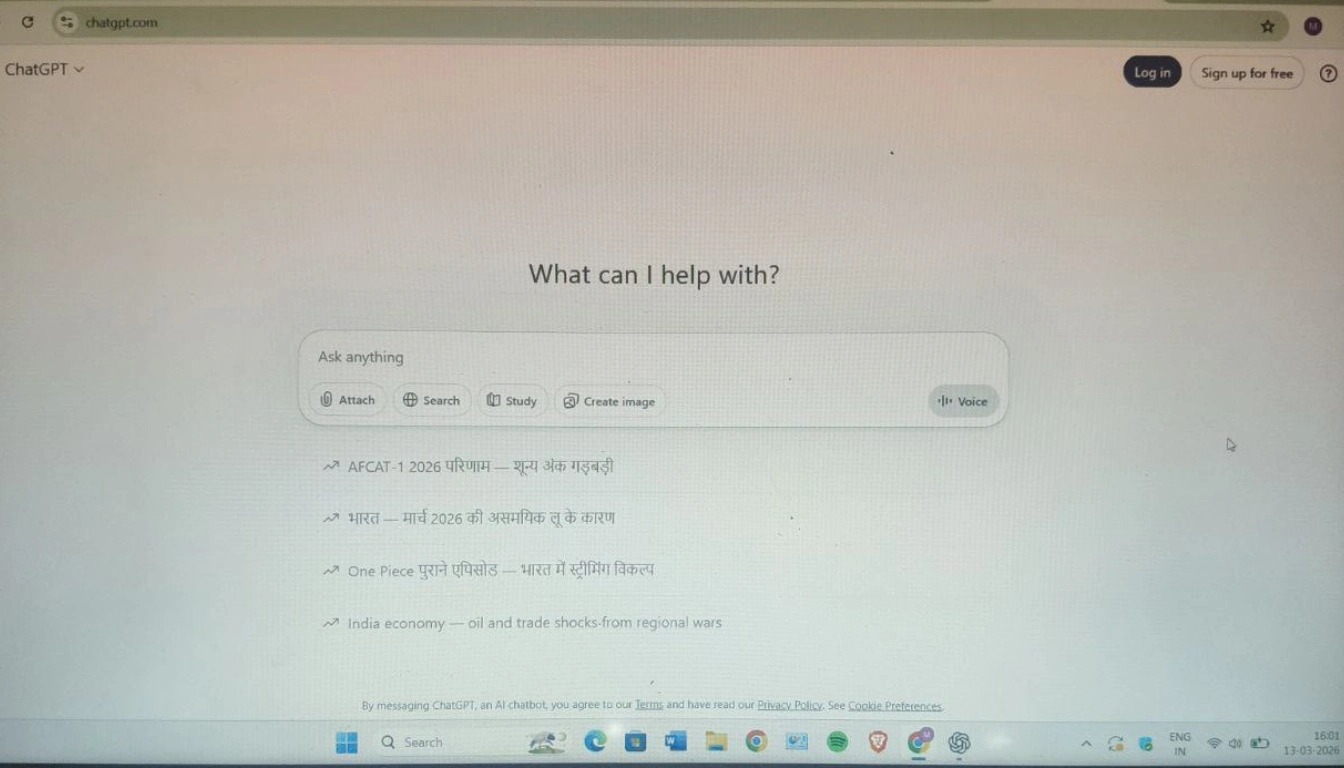
If you work on a laptop or desktop, learning how to use ChatGPT voice mode on PC can improve your daily workflow. Many users think voice mode is only for mobile, but now it is also available on desktop apps and browsers. This allows you to speak instead of typing long messages, which saves time.
Step 1: Open ChatGPT on your PC
You can either use the official desktop app or open ChatGPT in your web browser. Make sure you are logged into your account.
Step 2: Locate the microphone icon
Look near the chat input box. You will see a microphone icon. This is used to start voice interaction.
Step 3: Allow microphone permission
When you click the icon, your browser or system will ask for microphone access. Allow it so ChatGPT can hear you.
Step 4: Start speaking
Now speak clearly. ChatGPT will listen and respond instantly with voice.
Step 5: Use shortcuts (optional)
On Mac, you can press Option + Space to quickly activate voice mode. This makes it faster to use during work.
Once you understand how to use ChatGPT voice mode on PC, you can use it for research, writing, and multitasking easily.
How to Use Voice Command in ChatGPT
After learning how to use ChatGPT voice mode, the next step is understanding how to use voice command in ChatGPT effectively. Voice commands are simple instructions that you speak naturally.
For example, you can say “Explain this topic simply,” “Summarize this in five points,” or “Teach me step by step.” ChatGPT understands your request and gives a response instantly.
The key is to speak clearly and give specific instructions. If your command is clear, the answer will be better. This is why learning how to use voice command in ChatGPT improves your productivity.
Many professionals use voice commands for quick work, while students use them for studying and revision.
How to Use ChatGPT Advanced Voice Mode
If you want a more realistic experience, you should explore how to use ChatGPT advanced voice mode. This version is more powerful and feels closer to human conversation.
Advanced voice mode can understand tone, emotion, and natural pauses. You can interrupt ChatGPT while it is speaking, and it will adjust instantly. This creates a real conversation experience instead of a fixed response.
Step 1: Activate voice mode
Open ChatGPT and tap the voice icon to start.
Step 2: Use natural conversation
Speak normally and interact freely. You can interrupt or change topics anytime.
Step 3: Observe responses
You will notice more natural replies with better tone and expression.
Free users may get limited access to this feature, while paid users get extended usage. If you want better interaction, advanced mode is very useful.
Real-Life Use Cases of Voice Mode
Understanding how to use ChatGPT voice mode becomes more useful when you apply it in daily life. Here are some practical ways people are already using it:
Study Partner for Students: Students use voice mode to ask questions, revise topics, and test themselves. It helps them learn faster without reading long notes
Brainstorming for Professionals: Professionals use it to think out loud, generate ideas, and solve problems quickly without typing.
Hands-Free Cooking Assistant: While cooking, users ask for recipes and step-by-step instructions without touching their phone.Storytelling for Kids: Parents use voice mode to create and narrate bedtime stories, making it more fun and interactive for children.Language Practice Tool: Language learners use it to improve pronunciation and practice speaking in real-time conversations.Daily Task Helper: People use it for quick help like asking questions, planning tasks, or getting instant information.
10 Useful ChatGPt Voice Prompt You Should Try
Understanding how to use ChatGPT voice mode becomes much easier when you start using structured and clear voice commands. Many beginners make the mistake of asking very basic or unclear questions, which leads to average answers. But when you use well-designed prompts, ChatGPT gives much more accurate, useful, and detailed responses. That is why learning how to use voice command in ChatGPT is just as important as learning the feature itself.
If you want to get the best results from voice interaction, you should focus on how you speak and what you ask. Below are 10 powerful and practical voice prompts that you can use in real life to improve learning, productivity, and daily tasks.
1. Simple Explanation Prompt
Use Case: When a topic feels confusing or too technical
Full Prompt:
“Explain this topic in very simple words like I am a beginner, and also give 2 easy real-life examples so I can understand it clearly.”
Result:
This prompt helps break complex topics into simple ideas. It is especially useful for students because it removes confusion and builds a strong basic understanding.
2. Quick Summary Prompt
Use Case: When you want to revise or save time
Full Prompt:
“Summarize this topic in 5 clear and simple points so I can revise it quickly.”
Result:
You get short and structured information that is easy to remember. This is perfect for last-minute revision or quick learning.
3. Step-by-Step Learning Prompt
Use Case: When you want to learn something from the beginning
Full Prompt:
“Teach me this topic step by step from beginner level with simple explanation and clear flow.”
Result:
ChatGPT explains the topic in a proper sequence, which helps you understand it without feeling lost or overwhelmed.
4. Self-Test Prompt
Use Case: For checking your understanding and improving memory
Full Prompt:
“Ask me 5 important questions from this topic one by one, wait for my answers, and then correct me with explanation.”
Result:
You can test your knowledge like a real exam. This improves retention and helps you identify weak areas.
5. Translation and Speaking Prompt
Use Case: Language learning and communication
Full Prompt:
“Translate whatever I say into English and correct my grammar, then suggest a better sentence.”
Result:
You improve both speaking and grammar skills at the same time. It feels like practicing with a real tutor.
6. Real-Life Example Prompt
Use Case: When theory is hard to understand
Full Prompt:
“Give 3 simple real-life examples to explain this concept in a practical way.”
Result:
Abstract ideas become easier to understand because you can relate them to real-world situations.
7. Interview Practice Prompt
Use Case: Preparing for jobs or exams
Full Prompt:
“Act as a professional interviewer and ask me 5 questions related to this topic, then give feedback on my answers.”
Result:
You get a realistic interview experience, which helps build confidence and improve answers.
8. Beginner Mode Prompt
Use Case: When you have zero knowledge about a topic
Full Prompt:
“Explain this topic like I have zero knowledge and keep everything very simple and clear.”
Result:
You get a foundation-level explanation that makes even difficult topics easy to understand.
9. Story-Based Learning Prompt
Use Case: When you want to remember concepts easily
Full Prompt:
“Turn this topic into a short and interesting story so I can remember it better.”
Result:
Stories make learning more engaging and improve memory, especially for long or boring topics.
10. Problem-Solving Prompt
Use Case: When you are stuck on a problem
Full Prompt:
“Guide me step by step to solve this problem and explain each step clearly with reason.”
Result:
You not only get the answer but also understand the full process, which helps in long-term learning.
Using these commands regularly will help you master how to use ChatGPT voice mode faster and more effectively. Over time, you will notice that your questions become clearer, your answers become more useful, and your overall productivity improves. The more you practice using voice commands, the more natural and powerful your interaction with ChatGPT will become.

Troubleshooting: ChatGPT Voice Mode Not Working
Sometimes voice mode may not work properly. If you face issues, do not worry because most problems are easy to fix.
- First, check microphone permission. If ChatGPT cannot access your microphone, voice mode will not work.
- Second, update your app to the latest version. Many features are only available after updates.
- Third, log out and log in again. This refreshes your account and often fixes issues.
- Fourth, clear cache if you are using Android. This removes old data that may cause problems.
Sometimes features are not available in all regions, so waiting for updates may also solve the issue.
FAQs- How to Use ChatGPT Voice Mode
How to use ChatGPT voice mode for free?
You can use ChatGPT voice mode for free using the standard voice feature available in the official app. It allows unlimited basic voice interaction without any cost.
How to access ChatGPT voice mode on mobile?
Open the ChatGPT app, log in, and tap the voice icon at the bottom right corner. Allow microphone permission and start speaking.
How to use ChatGPT voice mode on iPhone?
Download the official app from the App Store, tap the voice icon, select a voice, and start talking. You can also use the action button for quick access.
How to use ChatGPT voice mode on PC?
Open ChatGPT on your browser or desktop app, click the microphone icon, allow permissions, and start speaking.
What is ChatGPT advanced voice mode?
Advanced voice mode provides more natural conversations with emotion detection and interruption support. It is available with limits for free users.
Why is ChatGPT voice mode not working?
Check microphone permission, update your app, log out and log in again, or clear cache. Sometimes features are not available in all regions.
Conclusion
Voice AI is becoming the future of communication. It is faster, easier, and more natural than typing. Once you understand how to use ChatGPT voice mode, you can save time and improve your productivity.
Whether you are a student, professional, or beginner, voice mode can help you in many ways. Start using it today and explore more AI tools on Choosfy.com to stay ahead in 2026.
Choosfy.com is a growing platform where you can explore useful AI tools, and alsoFree Ai Tools, simple tech guides, and the latest AI updates. If you want to learn more about AI tools, just search Choosfy.com in Google. You can also check our free AI tools list and discover more helpful posts on our website.
Recommended Articles
- How to Add ChatGPT to WhatsApp in 2026: 3 Easy Methods
- Online Medical Coding and Billing Certification Programs 2026: Courses, Jobs, Salary & Career Guide
- Most People Use AI Tools Wrong — Try These 4 Simple Tricks Instead
- Free AI Tools List 2026: Best Free AI for Video, Image, and Productivity
- AI Tools for Students: Study Faster and Smarter in 2026
- Hidden AI Tools 2026: Powerful New AI Tools Most People Don’t Know
- Make Money with AI: Free AI Tools That Can Help You Earn Online
- How to Get Premium AI Features for Free in 2026
- How to Access Gemini AI Premium Features Free
- 10 Practical Problems ChatGPT Can Solve Better Than a Professional
- How to Use ChatGPT in 2026: Beginner to Advanced Guide
- AI Tools for Handwriting Notes Free in 2026
- AI Trip Planner India
- 20 Best Free AI Content Generator Tools in 2026
- Claude Code 2.0: The AI Coding Assistant Developers Are Switching To
- LLM Setup 2026

I am Md Amon Sk, a Website Developer with 2 years of experience. As part of the Choosfy Team, I focus on building quality websites and sharing the latest insights on AI tools.
2 thoughts on “How to Use ChatGPT Voice Mode: The Ultimate 2026 Guide”
Comments are closed.