

Local LLM Setup Guide: How to Run Powerful AI Offline in 2026
Table of Contents
AI is everywhere in 2026, but most people still depend on cloud tools. That means your data goes to servers, you need internet, and sometimes you face limits or restrictions. This is where Local LLM Setup becomes powerful. Running AI on your own device gives you full control, better privacy, and zero usage cost after setup. You don’t need to worry about API limits or data leaks anymore. Many users are now switching to local models because they want a private ChatGPT alternative offline. If you are serious about AI and privacy, learning Local LLM Setup is one of the best skills you can build today.
The biggest change in 2026 is that small models are now extremely powerful. Earlier, you needed huge GPUs to run good AI models. Now, even mid-range systems can run models that feel close to GPT-4 in many tasks. This means students, developers, and creators can use open source AI for privacy without spending a lot of money. So, if you want to run Llama 4 locally or test a DeepSeek local setup guide, this article will help you step by step. Let’s start from the basics and move toward a complete working setup.
Key Takeaways
- Privacy First: Local LLM Setup allows you to run AI without sending data to the cloud, making it ideal for private and secure workflows. You control everything on your machine, which is perfect for developers and professionals.
- Low Cost Setup: Once installed, local AI runs without API costs. This makes it a great choice for students or anyone who wants unlimited AI usage without paying monthly fees.
- Hardware Matters: Your GPU VRAM decides what models you can run. Even systems with 16GB RAM can run powerful models with the right setup.
- Beginner Friendly Tools: Tools like Ollama and LM Studio make Local LLM Setup simple, even if you are new to AI.
Why Run AI Locally?
So, why are people moving toward Local LLM Setup instead of cloud AI? The biggest reason is privacy. When you use online tools, your data is sent to external servers. This can be risky if you are working with sensitive information. Local models solve this problem because everything stays on your device.
Another reason is cost. Cloud AI tools often charge per usage. If you use them daily, the cost can add up quickly. With a local setup, you pay once for hardware and then use AI unlimited times. This is why many users are searching for a private ChatGPT alternative offline.
There is also the benefit of control. You can choose which model to run, how to fine-tune it, and even connect it with your own data. This makes Local LLM Setup perfect for developers and researchers who want full flexibility.

Hardware Requirements: What Do You Actually Need?
Before you start your Local LLM Setup, you need to understand hardware requirements. Many beginners think they need expensive machines, but that is not always true. The most important factor is VRAM, not just RAM or CPU speed.
If you want to run Llama 4 locally or similar models, your GPU plays a big role. VRAM decides how large a model you can load and how fast it will run. CPU is important, but GPU matters more for AI performance.
Budget Setup (8GB VRAM)
If you have a budget system, you can still run smaller models. Models like Llama 3 or Mistral work well in this setup. These are great for basic tasks like chatting, writing, and simple coding. Many beginners start here because it is affordable and still powerful.
Mid-Range Setup (16GB–24GB VRAM)
This is where things get interesting. A mid-range setup is considered the best local AI for 16GB RAM users. You can run models like Qwen or Gemma smoothly. These models perform well for coding, research, and advanced tasks. If you want a balanced setup, this is the sweet spot.
High-End Setup (48GB+ VRAM)
If you have a high-end machine, you can run very large models. These models are closer to advanced reasoning systems. They are useful for deep research, complex coding, and enterprise-level tasks. However, most users do not need this level unless they are working on heavy projects.
Top 3 Tools for Local LLM Setup
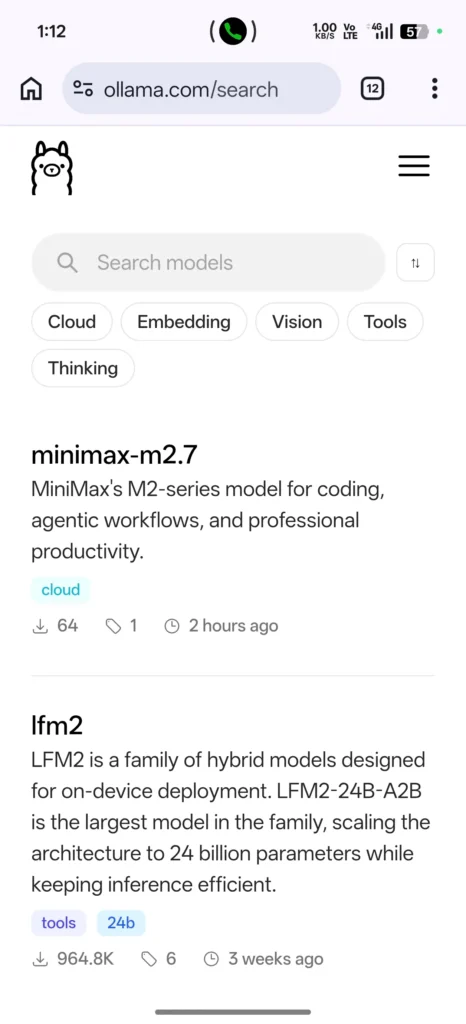
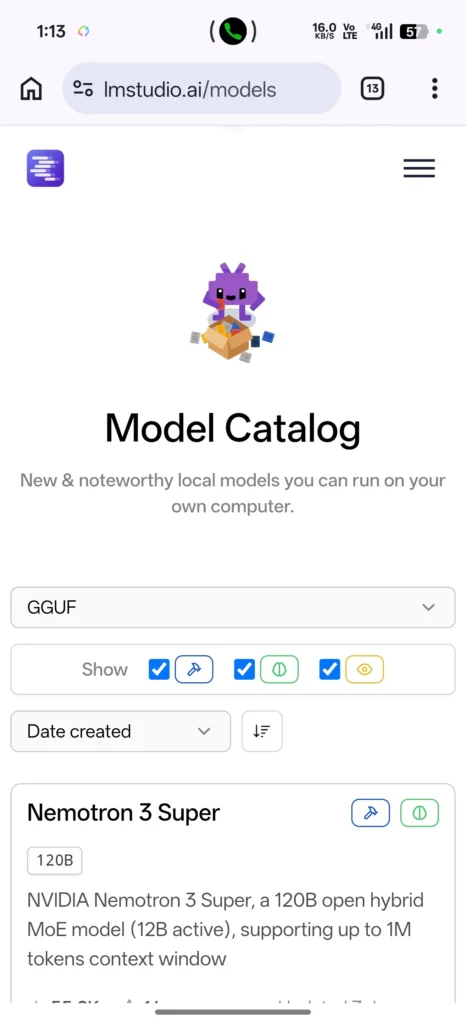
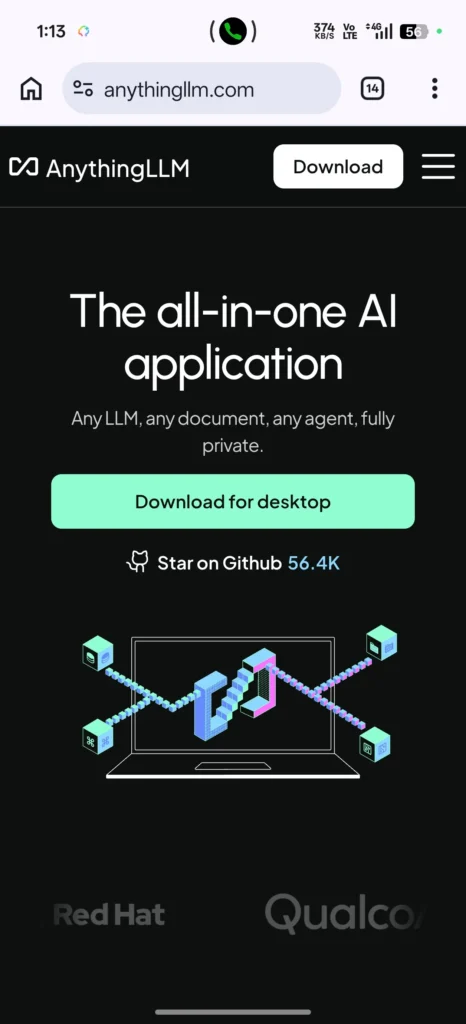
Now let’s look at the tools that make Local LLM Setup easy. Without the right tools, setup can feel complicated. But with modern tools, even beginners can start quickly.
Ollama
Ollama is one of the easiest tools for Local LLM Setup. It works through command line but is very simple to use. You can download a model and start using it within minutes. It is fast, lightweight, and perfect for developers.
LM Studio
If you want a user-friendly interface, LM Studio is a great choice. It feels similar to ChatGPT, which makes it ideal for beginners. You can load models, chat with them, and manage everything visually. Many users compare Ollama vs LM Studio 2026 to decide which one suits their workflow.
AnythingLLM
AnythingLLM is perfect if you want to chat with your own files. It supports RAG (Retrieval-Augmented Generation), which means you can upload PDFs and ask questions based on them. This makes Local LLM with RAG setup very powerful for research and study.
Step-by-Step Installation (Example: Ollama)
Now let’s move to the practical part of Local LLM Setup. Setting up a local model may sound difficult, but tools like Ollama make it very simple. You don’t need advanced coding skills to get started. You just need to follow a few steps carefully. Once you complete the setup, you can run powerful AI models directly on your system. This section will help you build your first working local AI setup.
Step 1: Download and Install Ollama
First, go to the official Ollama website and download the installer for your system. It supports Windows, macOS, and Linux. After downloading, run the installer and follow the instructions. The installation process is very simple and takes only a few minutes. Once installed, open your terminal or command prompt. This is where you will run your AI models.
Step 2: Choose the Right Model
Choosing the correct model is very important in Local LLM Setup. You will often see formats like GGUF and AWQ. GGUF models are optimized for CPU and low GPU usage, while AWQ models are better for GPU performance. If you have limited hardware, GGUF is a safer choice. For better performance with a GPU, AWQ can give faster responses. So, always select a model based on your hardware capability.
Step 3: Run Your First Model
Once you select a model, you can run it using a simple command. For example, you can type a command to download and run a model like Llama or Mistral. After running the command, the model will download and start automatically. You can then type prompts and get responses instantly. This is your first working Local LLM Setup. From here, you can experiment with different models and features.

Best Local Models to Download Right Now
Choosing the right model can make a big difference in your experience. In 2026, many powerful models are available that can run locally. These models are optimized for different tasks like coding, chatting, and reasoning. Let’s look at some of the best options.
Best for Coding
If you are a developer, models like DeepSeek-Coder-V2 and Qwen2.5-Coder are excellent choices. These models can help with writing code, debugging, and explaining logic. Many developers prefer these models because they perform very well even on mid-range systems. A DeepSeek local setup guide is often recommended for coding tasks.
Best for General Chat
For everyday use, models like Llama 3 or Gemma are great. These models are lightweight and provide smooth conversation. They are perfect for writing, learning, and general problem-solving. If you want a simple private ChatGPT alternative offline, these models are a good starting point.
Best for Reasoning
If you need advanced reasoning, models like Phi-4 or DeepSeek-R1 (distilled versions) are strong options. These models are designed to handle complex tasks such as logic problems and deep analysis. However, they may require better hardware to run efficiently.
How to Use Local LLM in VS Code
One powerful way to use Local LLM Setup is by connecting it with VS Code. This is especially useful for developers who want AI assistance while coding. Instead of using cloud tools, you can run everything locally and keep your code private.
To start, install a VS Code extension that supports local models. Then connect it with your Ollama or LM Studio setup. Once connected, you can ask questions, generate code, and debug directly inside your editor. This makes development faster and more efficient.
Many developers prefer this setup because it removes dependency on internet-based tools. It also improves workflow speed since everything runs locally on your machine.
Local LLM with RAG Setup
RAG stands for Retrieval-Augmented Generation. This feature allows your AI model to read and understand your personal data. For example, you can upload PDFs, notes, or documents and ask questions based on them. This makes Local LLM Setup even more powerful.
Tools like AnythingLLM make RAG setup simple. You can upload files and start chatting with them instantly. This is very useful for students, researchers, and professionals who work with large documents.
With a Local LLM with RAG setup, your AI becomes more personalized. It does not just give general answers but responds based on your own data.
LLM Setup Advanced Tips for Better Performance
Once your Local LLM Setup is ready, you can improve performance with a few simple tips. First, choose the right quantization level. Models in 4-bit format use less memory but may lose some quality. 8-bit models offer better accuracy but need more resources.
Second, close unnecessary applications while running your model. This frees up memory and improves speed. Third, keep your drivers updated, especially GPU drivers. Updated drivers often improve performance and stability.
These small changes can make a big difference in how smoothly your local AI runs.
Troubleshooting Common Performance Issues LLM Setup
Even after setting up your Local LLM Setup, you may face some performance issues. This is normal, especially for beginners. The most common problem is “Out of Memory” or OOM error. This happens when your system does not have enough VRAM or RAM to load the model. If you face this issue, try using a smaller model or switch to a lower quantization like 4-bit.
Another common issue is slow response time. This usually happens when your system is overloaded. Closing background apps can improve performance instantly. Also, make sure your GPU drivers are updated because outdated drivers can reduce performance.
Sometimes, models may not load properly due to incorrect format selection. Always check if you are using the correct format like GGUF or AWQ based on your system. These small fixes can solve most problems in Local LLM Setup and help your system run smoothly. Follow Ai Research Paper.
Common Mistakes to Avoid
Many beginners make small mistakes that slow down their Local LLM Setup. One common mistake is choosing a model that is too large for their system. Bigger models are powerful, but they require more VRAM. Always start with a smaller model and upgrade later.
Another mistake is ignoring quantization. Many users do not understand the difference between 4-bit and 8-bit models. Choosing the wrong format can either slow down your system or reduce output quality. So, always match the model format with your hardware capability.
Some users also skip proper tool selection. For example, using complex tools when a simple one like Ollama or LM Studio would be enough. Always choose tools based on your skill level to avoid unnecessary complications.
Practical Use Cases of Local LLM Setup
Once your Local LLM Setup is ready, you can use it in many real-world situations. Developers use it for coding assistance and debugging without sharing their code online. Students use it to learn topics, summarize notes, and prepare for exams. This makes learning faster and more interactive.
Content creators use local AI to write articles, generate ideas, and edit content. Since everything runs offline, their work remains private. Businesses also use local AI for internal tasks like data analysis and documentation.
Another powerful use is personal knowledge management. With a Local LLM with RAG setup, you can connect your AI to your documents and create a smart assistant that understands your data. This turns your computer into a powerful AI workstation.

FAQ: Local LLM Setup
Can I run AI models without a GPU?
Yes, you can run models using CPU, but performance will be slower. For better speed, a GPU is recommended, especially for larger models.
What is the best local AI for 16GB RAM?
Models like Llama 3, Gemma, and Qwen work well with 16GB RAM setups. They provide a good balance between performance and resource usage.
Is Local LLM Setup better than cloud AI?
It depends on your needs. Local setup is better for privacy and unlimited usage, while cloud AI may offer slightly better performance for very large models.
Can I use local LLM for coding?
Yes, models like DeepSeek-Coder and Qwen-Coder are designed for coding tasks. They can help with writing, debugging, and explaining code.
Conclusion
The shift toward Local LLM Setup is one of the biggest changes in AI usage today. More users are moving away from cloud-based tools and choosing offline solutions for better privacy and control. With modern tools and models, setting up local AI has become easier than ever.
Whether you want to run Llama 4 locally, build a DeepSeek setup, or create a private ChatGPT alternative offline, the possibilities are endless. Even mid-range systems can now handle powerful models, which makes local AI accessible to everyone.
If you are just starting, begin with a simple tool like Ollama and a lightweight model. As you gain experience, you can explore advanced setups like RAG and VS Code integration. The future of AI is not just in the cloud—it is also on your personal machine.
Choosfy.com is a growing platform where you can explore useful AI tools, and alsoFree Ai Tools, simple tech guides, and the latest AI updates. If you want to learn more about AI tools, just search Choosfy.com in Google. You can also check our free AI tools list and discover more helpful posts on our website.
Recommended Articles
- Stop Guessing: How AI is Secretly Boosting Online Sales by 300% in 2026
- Local LLM Setup Guide: How to Run Powerful AI Offline in 2026
- How to Add ChatGPT to WhatsApp in 2026: 3 Easy Methods
- 20 Best Free AI Content Generator Tools in 2026: Write Better, Faster
- AI Trip Planner India: Plan Your Perfect Trip in Seconds
- 7 Best Free AI Tools for Email Marketing in 2026- Tested & Compared
- 7 Best AI Tools for Handwriting Notes Free in 2026- Accuracy Tested & Compared
- AI Tools for Indian Lawyers 2026: A Complete Guide to AI Lawyers Software in India
- Agentic Capabilities in Ai Explained: How Autonomous AI Thinks, Plans, and Acts in 2026
- How to Use ChatGPT in 2026: A Complete Guide for Beginners

I am Md Amon Sk, a Website Developer with 2 years of experience. As part of the Choosfy Team, I focus on building quality websites and sharing the latest insights on AI tools.

2 thoughts on “Local LLM Setup Guide: How to Run Powerful AI Offline in 2026”
Comments are closed.